Blog Channels
Outlook Issue - You have exceeded the size limit on your mailbox
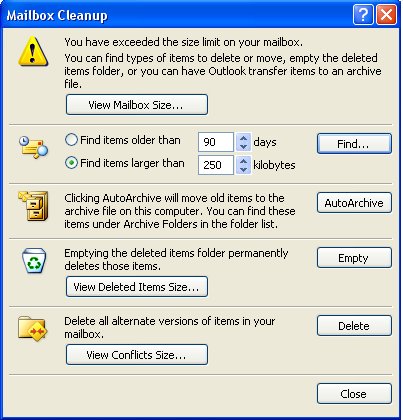
If you are seeing the below "Mailbox Cleanup" popup in Outlook 2003 or 2007 stating "You have exceeded the size limit on your mailbox.".

It can be for several reasons, some of which are:
- You're running on an Exchange server and your system administrator has mailbox limitations in place. You should receive warning e-mails about this condition before it surprises you though.
The solution here will be to use the Mailbox Cleanup wizard or Archive features to move some mail to a PST if you aren't able to get the limits increased.
- You have a PST or OST file that is around from a version of Outlook prior to Outlook 2003.
- You have exceeded the default size of the PST allowed in Outlook 2003 or 2007.
- You are running on a FAT32 partition, instead of NTFS
For these last three items, the troubleshooting steps are similar.
First, check the size of your PST / OST file. If your operating system is Windows Vista or Windows 7, browse to:
C:\Users\<your username>\AppData\Local\Microsoft\Outlook
If your operating system is Windows 2000 or Windows XP, browse to:
C:\Documents And Settings\<your username>\Local Settings\Application Data\Microsoft\Outlook
If you are having trouble locating the proper folder, your profile could be located in a non-default location try entering %LocalProfile% to in the run box followed by the path after <your username> in the above examples.
Look at the size of the OST or PST file. If it's at, or close to 2GB, you're either running a FAT32 partition (check this by viewing your local disk properties in My Computer), or you upgraded from a prior version of Outlook and have an older formatted file. Both of these instances will need to be run through a conversion process. The disk conversion is considered a FAT32 to NTFS conversion, and the PST conversion is considered an ANSI PST to Unicode PST conversion. Do a quick search and you'll find several articles detailing those processes. Always create a backup before trying either of these.
If it's at, or close to 20GB, you have hit the default limit in Outlook 2003 / 2007. Microsoft KB 832925 discusses the adjustment of these settings http://support.microsoft.com/kb/832925. The quick version is that you need to make some registry adjustments to increase the limits. Registry settings for Outlook 2007 to change the warning limit to 29GB and the max size to 30GB is:
[HKEY_CURRENT_USER\Software\Policies\Microsoft\Office\12.0\Outlook\PST]
"MaxFileSize"=dword:7bb04400
"WarnFileSize"=dword:74404400
"MaxLargeFileSize"=dword:00007800
"WarnLargeFileSize"=dword:00007400
Registry settings to revert back to the default values are:
[HKEY_CURRENT_USER\Software\Policies\Microsoft\Office\12.0\Outlook\PST]
"MaxFileSize"=dword:7bb04400
"WarnFileSize"=dword:74404400
"MaxLargeFileSize"=dword:00005000
"WarnLargeFileSize"=dword:00004c00
If you are running Outlook 2003, change \12.0\ to \11.0\.


18 comment(s)
Comments
Bruce
increasing pst size
When I follow your directions to the path below, I do not "see" "Office" under Microsoft. I only have 2 folders, "SystemCertificates" and "Windows". Can you help?
[HKEY_CURRENT_USER\Software\Policies\Microsoft\Office\12.0\Outlook\PST]
dholm
Re: Missing registry key
That's pretty weird, all of my Office 2003, 2007, and 2010 available systems have the path available, at least to Office. The Microsoft KB article mentions that the specific keys might not exist, and they instruct you on how to create them. The registry scripts provided should fill in the tree appropriately. Hope that helps...
Bob
Max File Size Registry Settings
The reason Bruce didn't see Office under HKLM\Software\Policies\Microsoft, is because this path is used only when group policies are pushed from AD. If his computer is not part of a domain using group policies to control Office settings, he should drop 'Profile' from the path.
Waheed
Max File Size Registry Settings
HI there,
Great article thank you. However, it doesnt seem to work for me. I have windows 7 and Outlook 2007. I had to create 2 new keys n( one in the policy location and one n the user location) in the HK_Current user and have set the values to the maximum:
"MaxFileSize"=dword:7bb04400
"WarnFileSize"=dword:74404400
"MaxLargeFileSize"=dword:00007800
"WarnLargeFileSize"=dword:00007400
yet my .pst folder wont go over 1.83gb. So i have to keep deleting emails. I have tried restarting outlook and my pc, with no joy.
What else can i do/
Anonymous
Max File Size Registry Settings
I am having the same problems with my Win 7 64 bit machine running Outlook 2007. I rebuilt my OST file. I recreated my Outlook profile. I am still getting the error.
Any help would be appreciated.
MLJ
Check your PST file format
It sounds like your PST file is still in ANSI format which has a limit of 2GB. You may have migrated at some point from Outlook 2002 or prior. The PST file needs to be in UNICODE format to increase the file size limit. Once in UNICODE format, the default maximum size should be 20GB, which can also be increased.
You can check which format is being used in Outlook by going to File > Data File Management > double-click the PST file. If the Format field shows (97-2002) it is in ANSI format, otherwise it is in UNICODE format. Here are instructions on how to convert formats: http://www.msoutlook.info/question/115
Hope this helps.
MLJ
Dimitris
Please,could you explain me
Please,could you explain me what you mean?
Dimitris
Please,could you explain me
Please,could you explain me how I can do it?
JM
Very helpful, however what
Very helpful, however what needs to be dropped from the path is of course "Policies" (not "Profile"). So when the OST-size limit is not governed by group policy, the path is
HKEY_CURRENT_USER\SOFTWARE\MICROSOFT\OFFICE\12.0\OUTLOOK\PST (for Office2007). The PST key may need to be created.
Dan Keurig
http://support.microsoft.com/kb/832925
"If it's at, or close to 20GB, you have hit the default limit in Outlook 2003 / 2007. Microsoft KB 832925 discusses the adjustment of these settings http://support.microsoft.com/kb/832925. The quick version is that you need to make some registry adjustments to increase the limits."
Hey, could you post that MS article, I can't seem to find it. Thanks