
* Updated on 9-25-2009 – Please be sure to read the FAQ section as well as the comments for additional help *
* Updated on 8-23-2010 – Added information about auto correct *
First off thank you for reading my blog post. Most people get here from searching on Microsoft or Google. I would strongly urge you to read this whole article including the FAQ section. Also if you need any IT related support or are needing a new website please use the ‘Contact Us’ link.
If you are looking for something similar to Auto Text in Office 2007 you might check out Auto Correct. These settings can be found here: Office Button -> Word Options -> Proofing -> Auto Correct Options.
That may have answered your question but please read the rest of the blog post, you might learn something new!
We have a client here at InterWorks who compiles press releases and packages them together into a single news issue. We get the individual articles and then put them into one MS Word document and format them according to our clients guidelines. Once all the articles are in for the week we send it back to them for review. It is a very simple process but very time consuming. On average we will format around 60 press releases and sometimes as many as 80.
As I said above we have to format each of these press releases to the guidelines of our client. One of these guidelines is placing contact information below each article. Each article must have a “News Contact,” “Email,” and “Phone” fields below the article in this format:
News Contact: John Doe
Email: john.doe@ example.com
Phone: 555-555-5555
Having to type out the outline for this news contact section for every article is very time consuming so I started keeping another document open with the outline typed out and I would copy and paste it below each article and then add the users name, email and phone number. This was still very time consuming and there was too much window switching. I remembered that I had previously setup auto text within Word which was basically a “auto completion” of words. For instance if you had to type your name a lot you could set it up to where if you put your initials, in my case RGB, it would replace them with your full name, Robert Grant Bivens.
I set out to find the auto text feature in Office 2007 but could not find it. I later learned that what was auto text had become ‘AutoCorrect’ in Office 2007. You can find it under the Office button > Word Options > Proofing. This tool is great for single words or a few words but it offers no advanced features such as line breaks and formatting options.
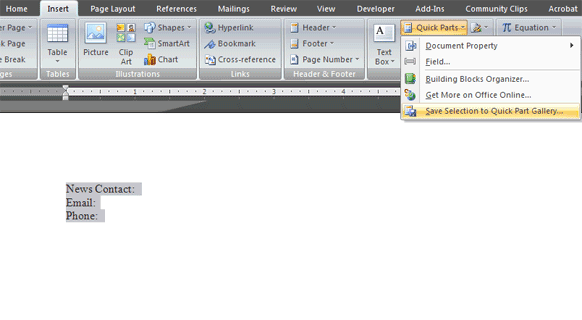
As I was searching on Google I saw several mentions to “Quick Parts” which is under the “Insert” tab on the Word ribbon. I examined the Quick Parts drop down but didn’t really see how I could add my own. I then realized that I might need to type out and select what I wanted to save as a Quick Part so I tried that. Once I had something selected a new menu option under Quick Parts was available, “Save Selection to Quick Part Gallery…”
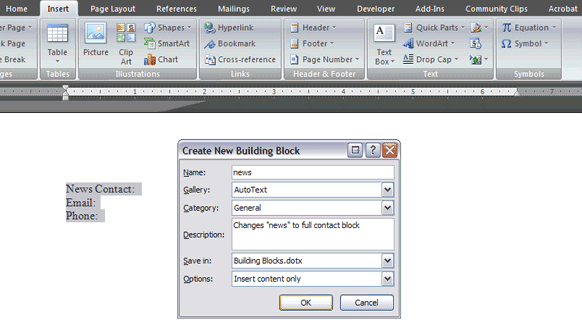
I clicked the menu option and was presented with a “Create New Building Block” box. I changed the “Name” field to something easy to type which would be my replacement value (more on that later), set the “Gallery” to “Quick Parts.” If you want to setup a new “Category” you can do so but leaving it set to “General” will be just fine. The “Description” helps you identify what the building block does on the “Building Blocks Organizer” window. Save it in the “Building Blocks.dotx” template or the Normal.dotm template and set it to “Insert content only” unless you have specific needs which requires something different. Click “OK” to save the building block.
Now all you have to do to insert your Quick Part is type in the “Name” you gave your building block and press “F3”
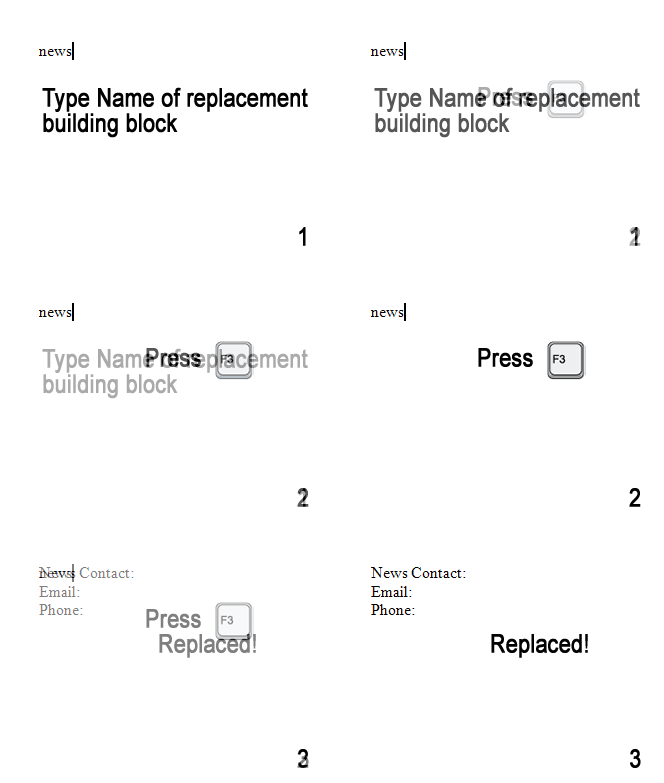
This method of text replacement can be used for a huge number of everyday tasks in MS Word like inserting blocks of text you often type such as addresses, letter headers, outlines and more!
*FAQ*
I’ve gotten quite a bit of response from this post so I just wanted to say thank you to all those who have commented or contacted us. Below are some questions (with answers) that I received via comments or email:
Q: I have/had ____________ auto text entries before I upgraded. Is there anyway I can merge/migrate/bring them into Office 2007?
A: Yes. Please reference http://technet.microsoft.com/en-us/library/cc179177.aspx
Q: “I’ve just discovered Quick Parts. In Auto Text, you had access to a list of the entries. Does Quick Parts offer this list and where do I find it?” -Lori
A: Hi Lori. Yes, you can view a list of all your quick parts. On the “Insert” tab click the “Quick Parts” icon to drop down the list and select “Building Blogs Organizer.” Here you can sort through all of the default quick parts and your custom quick parts by any of the column headings by clicking on each one. You might have to scroll to the right to see the description for each building block. You can even edit or delete any of these quick parts.
Q: “I followed your instructions by saving a sentence I add lots of times to an appointment. The only place it lets me save it is to the NormalEmail template.” – dt
A: It really shouldn’t matter where you save your Quick Part as long as that template file is loaded. The NormalEmail.dotm template for example will work great for Outlook but not in Word. It’s mainly a matter of ‘housekeeping.’
