
For a Windows Server 2003, if you RDP or remote desktop into the server you will notice that there huge delay to log into the server because the background image takes a very long time to load up. This image can be replaced by the default gray colored background, which will significantly shorten the amount of time it takes for the login menu to popup. This method was very effective in reducing the amount of time it took to RDP to servers when high speed internet was still emerging.
Here are the instructions:
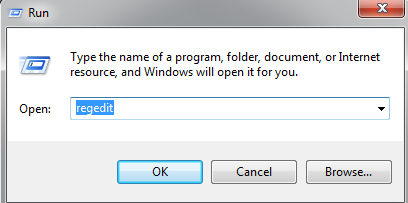
- Open up your run command. (Fastest way to do is to do ‘Windows Key’ + r)
- Type in regedit.
- Find HKEY_USERS > .DEFAULT > CONTROL PANEL > DESKTOP
- Double-click on Wallpaper
- The value will be something along the lines of %windir%system32DELLWALL.bmp. Replace this value with a null value such as 0 or (None).

- Next time you reboot your server and login, the background image should no longer be present.
