
Views is something that a lot of Drupal developers (myself included) likely could not do without. It provides a great way for us to display, sort, filter, and manage data and content for a huge variety of uses. One such use is exporting this collection of data as a CSV file. We can make this incredibly convenient using only one other module aside from Views – the Views Bonus Pack.
What We Want
- A collection of data created using the Views module
- A button to easily export the data to a CSV file
What We Need
- Drupal 6
- Views
- Views Bonus Pack (Enable Bonus: Views Export)
What We Do
For the first step, we need to know what content we are going to pull into a CSV file. We can either build a view from scratch or use a current view. The CSV export functionality can be added to a view that has already been created.
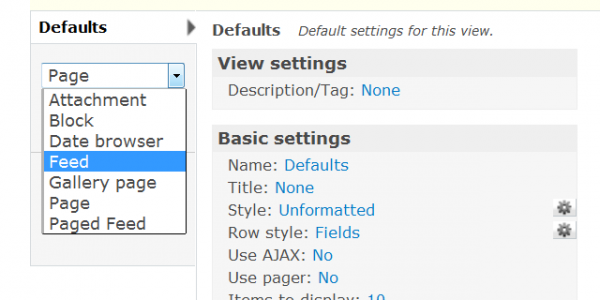
Once the view is built, we need to add a new Feed display. Select Feed from the display dropdown and click Add Display. From here, we have the option to customize a few things, including the display fields. This is useful in case we want the CSV file to store different fields than we see in our normal View display.
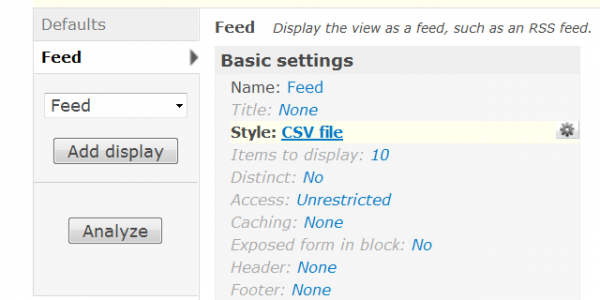
The next step is to actually change the display style to CSV. The style should default to RSS Feed under Basic Settings, so we just need to click there to change it. Clicking on the gear on the right side of the Style field gives us access to change the style settings, including the separator character, whitespace trimming, and even parent sorting.
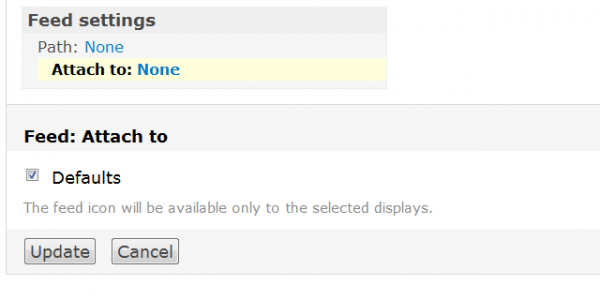
The final step to add our CSV button to the View is to fill out the Feed Settings. Here we need to set Path and Attach To. For instance, if we are outputting a View of student names, we could set the path to students.csv – be sure to add the .csv extension so that the path outputs it as a CSV file or you may receive a 404 error! The Attach To field determines which Views displays will include the CSV button. Select all the displays on which you’d like to include the button, click save, and we are finished!
There should now be a nice, orange box button below those displays, and you may change this to your liking with CSS.
Related
