
I love toolbars. I would never use the start menu if I could help it, so some of the shortcuts that Microsoft Windows 7 has put into the interface are a great welcome. Right-clickable context menus is a great time saver for those that do repetitive actions with their computer. So how do they work?
Every time you open a program, it puts a shortcut to that running program or app in the taskbar. In previous versions of Windows, there wasn’t a whole lot you could do with that shortcut but maximize, minimize, close, etc. Well now there’s quite few other things you can do. If you are simply looking for some of those old commands, you can find out where that menu is in this short blog entry.
Windows 7 Context Menus
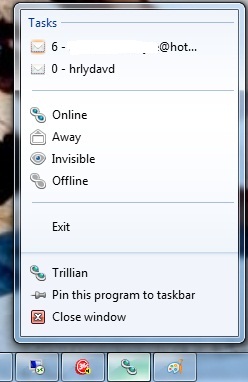
For any application running in your taskbar, simply right-click the icon, and a new “context-menu” will pop up. The image below is the menu that popped up when I did so on Trillian. The options available with Trillian are:
- What account to log on with
- Various modes of status (Online, Away, etc.)
- Exit (The equivalent of closing the application by using File–>Exit))
- Pin this program to taskbar (Explained later)
- Close (The equivalent of clicking the Red X on the window)
Office Documents
While this may not seem very impressive, there are some other apps that make better use of the context menu. The next example is context menu for a Microsoft Office Word document I have open.
 Internet Explorer
Notice that it shows the most recent documents I have used in Word. This works with any Microsoft Office documents (Excel, PowerPoint, Project, etc.). Also notice that I can get another context menu by right-clicking on the individual items, and get additional options from those items.
Internet Explorer
Now let’s look at trusty old Internet Explorer.
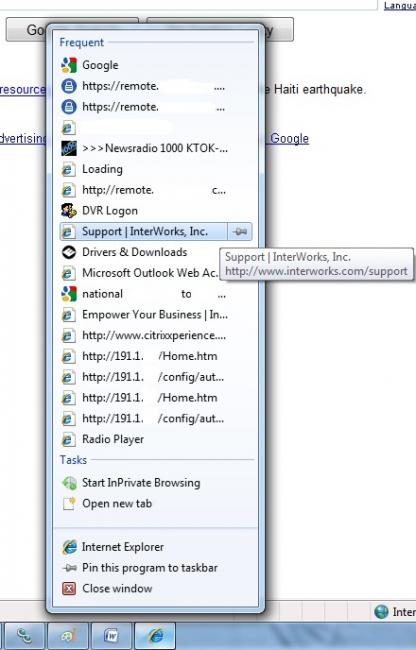
This time, it shows the most frequented web sites you visit, and again has additional options to include opening a new tab, or starting “InPrivate Browsing” (that will be another blog some day).
Microsoft Terminal Services Client (or RDP)
Lastly, I want to show you my favorite feature. Being a systems engineer, I use Microsoft Terminal Services Client (MSTSC.EXE aka RDP) a lot. Well, when you open via the command line like I often do, look at the context menu you get.
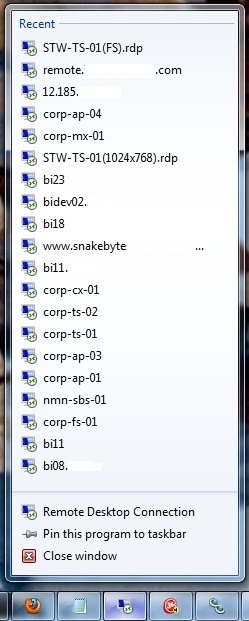
Notice, it shows all the recent terminal servers I have connected to. Very useful, but what if you do this a lot, but there are also certain servers you connect to all the time. Well, that’s where “Pin this program to taskbar” comes in handy. I can simply click the small “pushpin” icon next to any of the servers I’ve connected to in the past, and they show up at the top of the window, and stay there (see below).
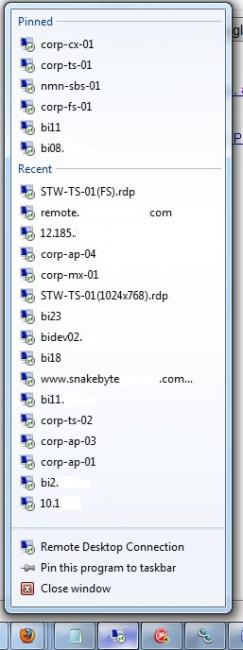
If you ever want to remove one from the “pinned” list, just click the small blue pushpin icon next to it, and it drops back down into the normal list.
Related
