Removing Saved Credentials (passwords) from Windows XP, Windows Vista, or Windows 7
Have you ever tried accessing a network device or resource only to find that last time you accessed that resource, you used a username and password that no longer works, or does not have the proper access.
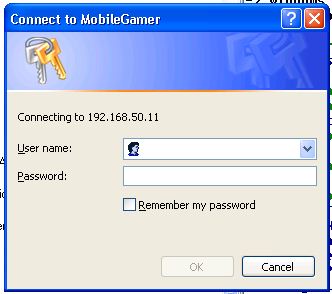
This usually happens when you use credentials other than yours to access a resource on your network, or to access a resource on someone else's network, and you check the "Remember my password" check box.
Ok, so you want to remove that password, but how. Simple, just follow these simple instructions to see all the passwords you've cached on your machine:
To removed cached credentials
1. Click Start and select Run
2. In the Open field type "rundll32.exe keymgr.dll, KRShowKeyMgr"
3. Once the Stored Usernames and Passwords interface opens you can select any of the entries and select Properties to view the existing information
4. To remove a saved password you can select one of the entries and select Remove. A confirmation screen will appear. Click on OK and the account will be removed
5. You can add additional saved passwords as well by clicking on the Add button and entering the appropriate information
6. Repeat the steps above as needed to add, remove or edit saved passwords
7. When you are done using the interface click the Close button
That's all there is to it. This is a great way to see if, while working on a machine, you've accidentally saved your credentials, as any username/password combinations in this list will survive a reboot, and still be available.


Click to get started.
7 comment(s)
Comments
Do you know how to remove the
Do you know how to remove the credentials programatically ? I m trying to do them in C#. Please help.
It doesn't work for me in
It doesn't work for me in Windows 7 32-bit. It says it cannot open "rundll32.exe keymgr.dll, KRShowKeyMgr" and that I need to verify that I typed it in correctly.
Make sure you are putting the command in the right spot
Click Start-->Run and type the command just as it's shown (without the quotes) rundll32.exe keymgr.dll, KRShowKeyMgr
And the other post is correct, You can Type "Manage Windows Credentials" or "Credential manager" (without quotes) in Windows 7 and get the same response (It opens the windows 7 version of the same console). Not sure if this works in Windows Vista, and it will not work in Windows XP. Also, if your search feature is disabled by your administrator, it's possible those two commands will not work.
Also, there is no need to reboot, you can simply log off, then back on to enforce the new credentials.
Not to put too fine a point on it, but...
...there is no Start->Run in Windows7, at least the 64-bit version. It's actually Start (or Windows, dunno what to call that thing anymore), then Show All Programs, then Accessories, THEN Run.
And FWIW, a saved password I typed incorrectly doesn't show up there (or in Credentials Manager), but it's preventing me from connecting to the machine. (sigh) Windows makes networking so terribly hard compared to un*x...
Start > Run does exist in
Start > Run does exist in Windows 7, but it is hidden by default. To show it, right-click on your Start button, select Properties. On the Start Menu tab, click Customize. Find "Run command" and check the box. Click OK all the way out.
In Windows 7 (and perhaps
In Windows 7 (and perhaps Vista) you can simply press the Windows button and then in the search box type "manage windows credentials" and that will get you what you need.
You may need to reboot the PC after you remove the credentials from your vault to make sure the PC is fully "de-authorized."