
So Eaglesoft won’t print
Many dentist rely on Eaglesoft to keep their practice running smoothly every day. One of the quarks that anyone using Eaglesoft knows about is lack of printer support. Getting a printer work exactly like you want to can be a little bit of battle sometimes. Especially when you are using terminal server to connect to the Eaglesoft client. There is only way to get a networked printer to work with your eaglesoft terminal session and luckily for you the steps are listed below.
1. Connect the network printer directly to the workstation that will terminaling in.
- To do this you will have to go to printers and faxes
- Then go to add a printer
- create the standard tcp/ip port on the address of the printer
- install the proper driver for the printer
2. make the following registry changes to the Terminal server . This will allow terminal server to map network printers.
- Click Start, click Run, type regedit, and then click OK.
- Locate and then click the following key in the registry:
HKEY_CURRENT_USERSoftwareMicrosoftTerminal Server ClientDefaultAddInsRDPDR
- On the Edit menu, point to New, and then click DWORD Value.
- Type FilterQueueType, and then press ENTER.
- On the Edit menu, click Modify.
- Type FFFFFFFF, and then click OK.
- Close the Registry Editor.
- Restart your computer.
3. Make sure you rdp icon is set to allow printers to map
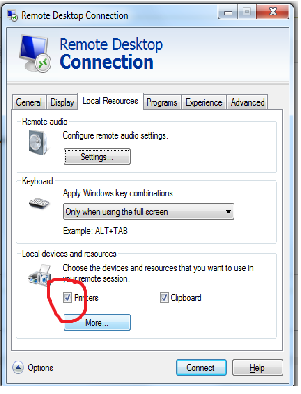
4. Now you can log into you server and you’re network printer will map. You can log into eaglesoft and print to it. you could also set it as your default printer if needed.
Related
